
2.1. Search Confirmatory Reports
2.1.1. Overview
The Search section is the central entry point to all scientific evidence included in the IOLEvidence application.
Its primary objective is to allow rapid identification of the most relevant and most recent evidence available in the database.
All articles incorporated into the app are listed here, with newly added studies clearly marked with the “New” label. This visual tag allows users to immediately identify the latest evidence without the need for additional filtering.
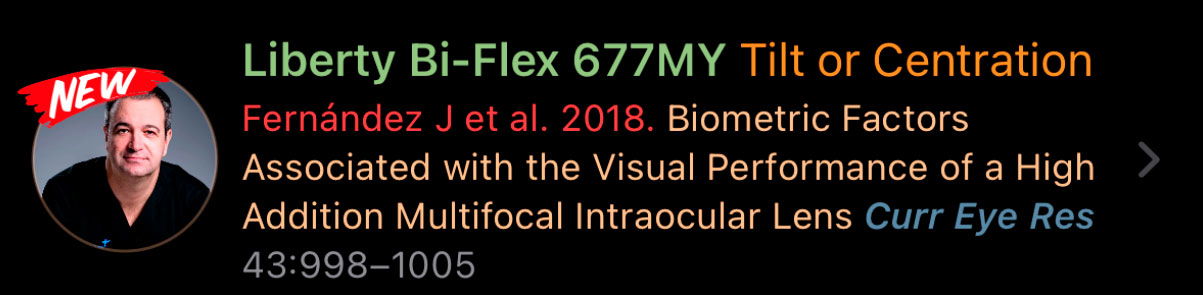
In addition, the Search section provides a global search engine that enables users to explore the entire database by:
Authors: Only the first author is displayed followed by et al., but the search includes all co-authors.
Title: Searches the full article title, allowing partial and keyword-based matches.
Journal: Searches by journal name to retrieve all articles published in a specific journal.
Category: Searches by functional IOL classification (e.g. Narrowed, Enhanced, Extended, Steep, Smooth, Continuous).
Intraocular lens (IOL) model: Searches by commercial IOL model name across all studies in the database.
This makes Search the fastest way to both stay up to date and retrieve specific evidence across the whole application.
2.1.2. Search Sections
Within Search, articles are organized into two clearly differentiated sections:
Confirmatory
Optimization
This separation is intentional and strictly methodological. Each section contains a different type of scientific evidence and serves a different clinical purpose.
Confirmatory

The Confirmatory section contains clinical studies that report standard end-points which allow the comparison, meta-analysis and Functional Classification of clinical outcomes.
These studies:
Follow homogeneous outcome metrics
Are suitable for direct comparison between lenses
They represent Confirmatory Evidence, aligned with the C (Confirm) component of the P–E–C–O framework.
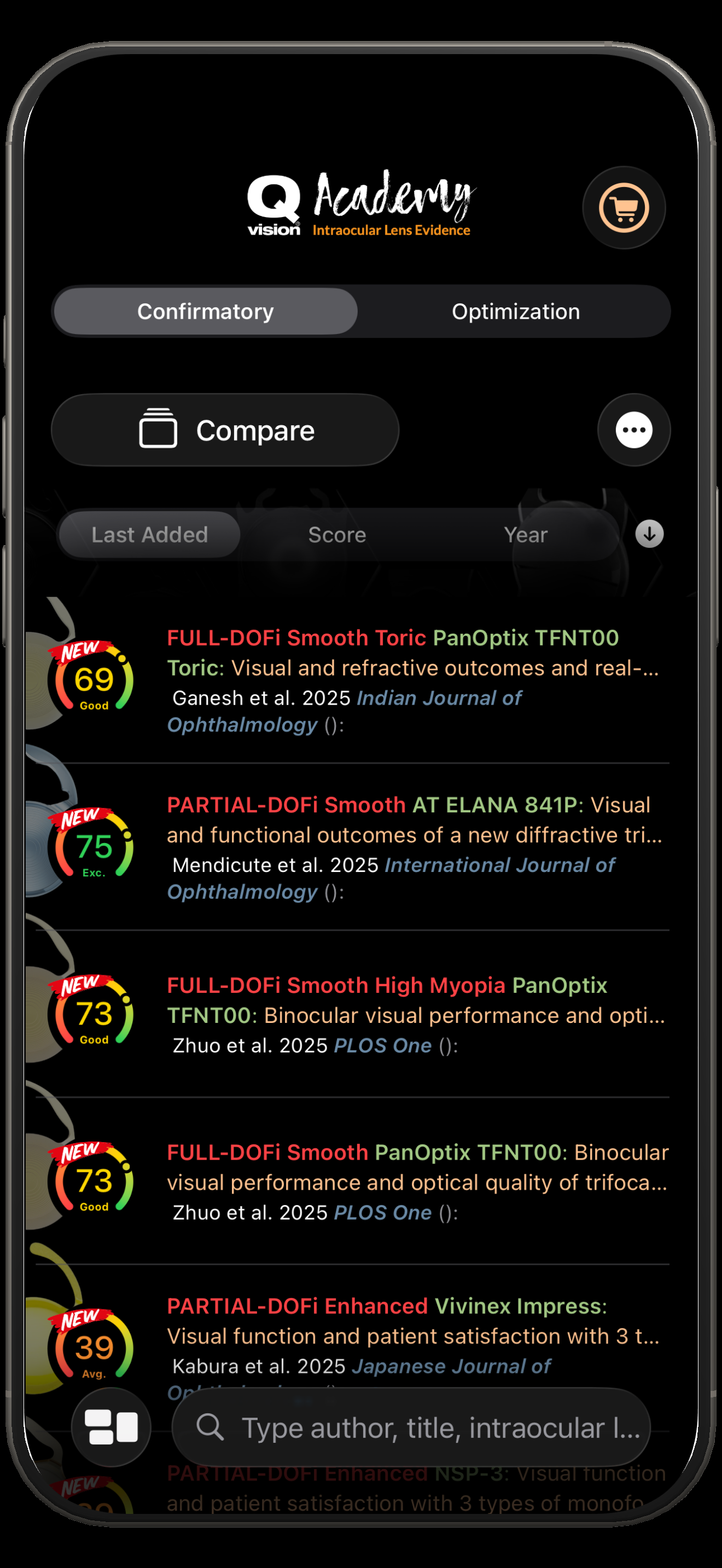 | How to access this viewThis view is accessed by tapping the Search icon (magnifying glass) in the bottom navigation bar of the app. By default, the Search section opens showing the Confirmatory tab, although users can switch at any time between Confirmatory and Optimization using the segmented control at the top of the screen. What can be seenThis screen displays a list of all scientific articles included in the application that can be ordered by a sorting control, allowing articles to be ordered by (Last added, Score, Year). Pressing over the top right menu described by three dots you can select clinical outcomes to be seen through the list changing the sorting controls depending on the selected outcome. |
|---|